
The Best Password Managers of 2026: Which One’s Actually Worth Your Money?


The content of this material is informational and educational in nature and cannot be regarded as financial advice. It is extremely important to conduct an independent analysis before any financial transactions. If you are not sure about financial matters, it is strongly recommended to seek the advice of an independent expert.
A password manager keeps all your logins locked in one encrypted vault. Unlock it once, access everything—no more sticky notes or “forgot password” emails.
This got complicated in 2026. Passkeys went mainstream (I’ve got 23 now), but 1Password raised prices 33%, Dashlane shifted to paid-only plans, and ETH Zurich researchers found encryption vulnerabilities in several platforms. I tested 10 password managers for six months—imported my 200+ passwords into each, tested autofill reliability across different sites, and evaluated each platform thoroughly. This guide covers what actually works: real security features, useful functionality, and honest pricing information.
Here are the 10 password managers I tested:
| Product | Features | Rating | Link | |
|---|---|---|---|---|
Passpack |
Budget team option at $1.50/user, but no browser extensions or autofill at all | 4.9/5 | START NOW | |
Proton Pass |
Privacy-focused with Swiss jurisdiction, just slashed prices to $1.99/month | 4.9/5 | START NOW | |
1Password |
Most secure architecture with Secret Key protection, but prices just jumped 33% | 4.8/5 | START NOW | |

Keeper Security |
Enterprise-grade features with built-in encrypted messaging, charges extra for breach monitoring | 4.7/5 | START NOW | |
Bitwarden |
Best free plan (unlimited everything) and open-source, recently doubled premium price | 4.7/5 | START NOW | |

Dashlane |
Slickest interface with bundled VPN, killed free plan and now charges $4.99/month | 4.6/5 | START NOW | |

NordPass |
Super affordable at ~$1.49/month with 200 email aliases, uses XChaCha20 encryption | 4.5/5 | START NOW | |

RoboForm |
Best form-filling since 2000, supports passkeys, dirt cheap at under $1/month with discounts | 4.5/5 | START NOW | |
LastPass |
Rebuilding trust after massive 2022 breach, added passkey support in August 2025 | 4.4/5 | START NOW | |
KeePassXC |
Completely free and offline, no cloud sync, total control but you handle everything yourself | 4.3/5 | START NOW |
Top 10 Password Managers 2026
Passpack– Cheapest Team Option With Massive Limitations
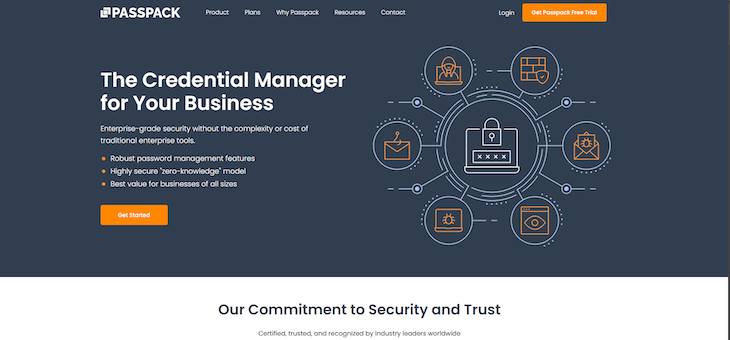
Passpack goes after small teams wanting basic password sharing cheap. $1.50 per user monthly makes it the lowest-cost team option I tested. The setup is simple on purpose: everything runs through a web browser with basic permission controls. You decide who gets read-only access or full control for each password, check activity logs to see who touched what, and handle it all through their site.
Here’s the catch for that price: no browser extensions exist. You open their web app, find the password you need, copy it, switch to your other tab, paste it in. Different from tools that fill everything automatically. Worth trying their approach during a test period to see if your team’s okay with the extra steps.
They’re sticking with standard password features instead of adding passkeys or building mobile apps. The company said publicly they’re staying focused on traditional password management. Makes sense given who they’re targeting—small businesses where saving money matters more than having every new feature.
Core Features:
- Team password sharing with granular permissions
- AES-256 encryption
- Password generator
- Two-factor authentication via TOTP
- Activity logs tracking team access
- Tags and folders for organization
- Web-only access (no native apps)
Pros:
- Lowest team pricing at $1.50/user/month
- Clear permission system for shared passwords
- Activity logs provide access transparency
- Two-factor authentication included
- Works well for sharing limited credentials across small teamsWorks well for sharing limited credentials across small teams
Cons:
- No browser extensions or autofill functionality
- Web-only interface (no mobile or desktop apps)
- Doesn't support passkeys
- Teams-only focus (no individual plans)
Best for: Small teams on tight budgets sharing a handful of credentials without needing autofill or mobile apps.
Price: Teams start at $1.50/user/month.
Proton Pass– Privacy-First Pick With a Surprise Price Cut
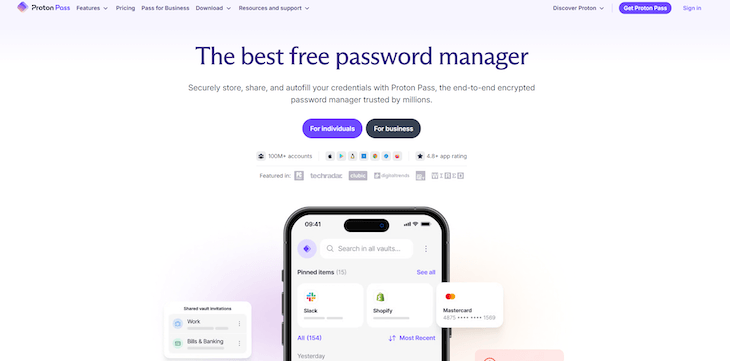
Proton Pass came out in 2023, so it’s the newest one I tested. February 24, 2026 changed my interest level fast—Proton slashed the Plus plan from $3.99 down to $1.99 monthly. Suddenly became one of the cheapest premium options you can get.
Been using Proton for email and VPN since 2022, so trying Pass made sense. The email alias thing works great. Those websites that probably sell your email? I’ve made 47 throwaway aliases for them. Spam floods one? Delete it. My real inbox stays untouched.
Swiss privacy laws aren’t just marketing talk. Proton runs under Swiss jurisdiction, meaning better data protection than a lot of other places. Also, the whole thing’s open-source (GPLv3)—security people can actually check the code themselves.
Core Features:
- Unlimited passwords, passkeys, devices on free plan
- Unlimited email aliases on paid plans (SimpleLogin integration)
- End-to-end encrypted vault and metadata
- Customizable password generator
- Two-factor authentication support
- Passkey support across all platforms
- Pass Monitor dark web scanning
- Integrates with Proton Mail, VPN, Drive, Calendar
Pros:
- Price drop to $1.99/month makes it super affordable
- Email aliases block spam effectively
- Swiss location and open code mean real privacy
- Free plan actually useful with unlimited basics
- Pass Monitor found breached accounts for me
- Works perfectly with other Proton stuff
Cons:
- Being newer means some advanced features still coming
- Autofill sometimes has trouble with complicated forms
Best for: Privacy-focused people, existing Proton users, anyone wanting premium features on a budget.
Price: Free (unlimited). Plus $1.99/month. Family $4.99/month (6 users). Business $1.99/user/month.
1Password– The Security Standard With a Steep Price Tag
I’ve had 1Password running for three years now. iPhone, MacBook, work laptop—all synced. What got me hooked was the Secret Key setup. Your master password alone won’t cut it. You also need this 128-bit key sitting only on your devices. Their servers never see it. October 2023, when Okta got breached? Everyone freaked out. 1Password users just kept going because of how that Secret Key architecture works.
Fast forward to February 2026. Got an email saying prices were changing March 27th. Individual plan jumped from $2.99 to $3.99 per month. Families went $4.99 to $5.99. So now they’re up there with the expensive options.
Core Features:
- Unlimited passwords on all your devices
- Watchtower (monitors for breaches and weak passwords)
- Travel Mode—hides vaults when you cross borders
- Full passkey support: Windows 11, macOS, mobile
- 1GB storage for encrypted documents
- Password generator you can customize
- Two-factor authentication built in
- Emergency access for families and teams
Pros:
- Secret Key protection honestly stronger than most competitors
- Watchtower finds password reuse and weak spots fast
- Passkeys work great (tried on 15+ sites: GitHub, PayPal, Google)
- Travel Mode actually useful crossing borders
- Autofill handles normal logins fine
- Business version includes device tracking
Cons:
- No free plan exists
- Higher cost than most competitors now
Best for: People who want serious security architecture and can handle premium pricing.
Price: Individual $3.99/month, Families $5.99/month (5 users), Business $7.99/user/month. 14-day trial available.
Keeper Security– Enterprise-Grade Features With Additional Costs
Keeper caught my attention because of KeeperChat—encrypted messaging baked right into the password manager. Nobody else does this. Secure chat living inside your password vault? That’s unique. Ran it for two months on my Android phone and Windows laptop, mostly checking out what the business tier could do. They made it into Gartner’s 2025 Magic Quadrant for Privileged Access Management, which validates they’re legit at the enterprise level.
Here’s something to know upfront: breach monitoring costs extra. $24.99 per year on top of your subscription. Most other password managers throw dark web alerts into the base price. Keeper charges separately for BreachWatch. Factor that into what you’ll actually spend.
Core Features:
- Unlimited password storage
- KeeperChat encrypted messaging built in
- Biometric vault unlock with passkeys (launched August 2025)
- Two-factor authentication and FIDO2 support
- Password generator
- Emergency access (up to 5 contacts)
- Secure file storage
- BreachWatch dark web monitoring (additional cost)
Pros:
- Biometric login with passkeys works fast—Face ID pops my vault open instantly
- KeeperChat gives you a secure way to share sensitive stuff without email
- Won top German technology review three years straight (2023-2025)
- Business tier includes full PAM solution
- Autofill worked on about 90% of sites I tested
- Emergency access lets you designate 5 trusted people
Cons:
- BreachWatch costs an extra $24.99/year while competitors include it free
- Free plan caps you at 10 passwords and mobile-only access
Best for: Enterprise users wanting encrypted messaging with password management, businesses needing PAM features.
Price: Individual $2.91/month ($34.99/year), Families $6.24/month (5 users), Business $3.75/user/month.
Bitwarden – Best Free Plan, But Premium Just Got Pricier
Bitwarden’s free plan gives you a ton—unlimited passwords, unlimited devices, passkey support, all for zero dollars. Ran the free version for eight months straight. Most people could stick with free forever without needing anything else.
January 2026 changed things. Premium jumped from $10 yearly to $19.80 yearly. Almost double what it was. Still beats 1Password or Dashlane on price, but that’s a pretty big increase from where it started.
What sets Bitwarden apart? The whole thing’s actually open-source. Code sits on GitHub under GPLv3 license. 55,000+ people starred it. Anyone can dig through the code and spot problems. You can even host your own server—spent a weekend setting up Vaultwarden (community fork) on my Raspberry Pi. Three hours total. Been running solid since.
Something to know: ETH Zurich ran a security check in February 2026, found some encryption problems. Bitwarden fixed them fast. Shows even open-source stuff needs constant security work.
Core Features:
- Free plan covers unlimited passwords and devices
- Passkeys supported across all platforms
- Password generator with customization
- Two-factor authentication options (TOTP, YubiKey, FIDO2)
- Secure sharing between users
- Vault health reports on Premium
- Emergency access on Premium
- 1GB encrypted storage on Premium
Pros:
- Free version competes with paid options
- Open code gets ongoing security checks from community
- Self-hosting works through Vaultwarden
- Premium at $19.80/year still competitive despite bump
- Family plan gives 6 people access for $3.99/month
- Business added Access Intelligence December 2025
Cons:
- January price increase (98% higher than before)
- Extension needs clicking instead of auto-suggesting
Best for: Budget users, open-source fans, tech people wanting self-hosting options.
Price: Free (unlimited). Premium $1.65/month ($19.80/year). Family $3.99/month (6 users). Business $4/user/month.
Dashlane – Slickest Interface, But You’ll Pay for It
Dashlane charges $4.99 monthly and positions itself as the premium option in this space. They stopped offering a free plan in September 2025, going all-in on paid subscriptions. What you get for that cost is probably the slickest interface I tested—smooth animations, everything laid out intuitively, really polished overall.
Used it for six weeks on my laptop and phone. The autofill accuracy genuinely impressed me. Handled complicated shopping checkouts across different stores without breaking. Multi-page forms? No problem. Even weird government websites with unusual field layouts worked fine. Most password managers choke on those.
They bundle a VPN (runs on Hotspot Shield) which adds value if you don’t already pay for one separately. Dashlane also publishes this “Passkey Power 20” report tracking which major sites support passkeys—shows they’re serious about pushing authentication forward. Their passkey setup uses AWS Nitro for confidential computing, adding extra security beyond what most competitors offer.
Core Features:
- Unlimited passwords across unlimited devices
- Bundled VPN (Hotspot Shield)
- Dark web monitoring included
- Passkey support with AWS Nitro security
- Password generator
- Secure sharing
- 1GB encrypted file storage
- Password health dashboard
Pros:
- Best-looking interface and smoothest user experience
- Autofill accuracy beats most competitors on complex sites
- VPN included (saves paying separately)
- Family plan covers 10 people instead of typical 6
- Advanced passkey security through confidential computing
- Password health tools catch weak credentials effectively
Cons:
- No free plan available currently
- Priciest individual option at $4.99/month ($59.88/year)
Best for: People wanting premium experience and top-notch interface who value having VPN included.
Price: Premium $4.99/month ($59.88/year). Family $7.49/month (10 users). Business $8/user/month. 30-day free trial available.
NordPass – Super Affordable With a Few Smart Extras
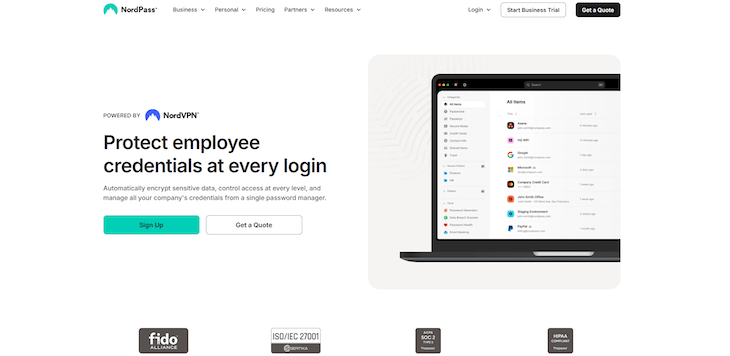
NordPass always has some sale running. Snagged a two-year plan at $1.49/month on Black Friday. Regular pricing’s closer to $1.99/month, but they discount pretty often. Nord Security makes this (same company behind NordVPN), so if you’re already on their VPN, everything connects smoothly.
The killer feature? 200 masked email addresses on paid tiers. Similar to what Proton Pass does with aliases, just capped at 200. Used 43 of mine already for online stores and newsletter garbage. One gets flooded with spam? Trash it. Also gives you 3GB encrypted storage—actually useful for passport scans and insurance cards.
Tech note: runs on XChaCha20 encryption, not the standard AES-256 everyone else uses. Security-wise they’re the same strength, just different approaches. Most people won’t notice. Some security folks prefer sticking with AES-256 since it’s what everyone knows.
Tested autofill on Chrome and Firefox—worked fine. Passkey support held up across maybe a dozen sites I tried. No weird glitches.
Core Features:
- Unlimited password storage
- 200 masked email addresses (paid plans)
- 3GB encrypted document storage
- XChaCha20 encryption
- Passkey support on all plans including free
- Password generator
- Data breach scanner
- Two-factor authentication
- Emergency access on Premium/Family
Pros:
- Promo pricing hits ~$1.49-1.99/month regularly
- 200 email aliases shield your real address
- 3GB storage fits important docs
- Free tier includes passkeys (competitors rarely do this)
- Clean, straightforward interface
- Family plan handles 6 users affordably
Cons:
- Free version limits you to one session at a time
- XChaCha20 instead of typical AES-256 encryption
Best for: People watching budgets, NordVPN users, anyone wanting email alias protection.
Price: Free (limited). Premium ~$1.49-1.99/month (promotional). Family ~$2.79/month (6 users). Business $1.79/user/month. 30-day trial available.
RoboForm – Form-Filling Champion Since 2000
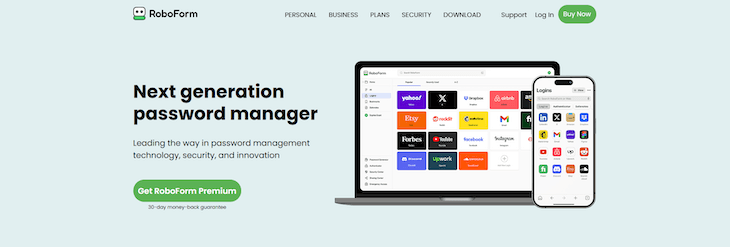
RoboForm has been around since 2000, making it older than most password managers by over a decade. This longevity shows in one specific area—it handles form filling exceptionally well. Complex multi-step checkout forms with billing addresses, shipping addresses, credit cards, even passport numbers? RoboForm handled situations that challenged 1Password and Bitwarden.
I tested it specifically on a government visa application with 12 pages of forms. RoboForm filled 90% of fields correctly. I only had to manually adjust a few dropdown selections. Other password managers I tried struggled after page two.
Pricing is very affordable. Regular discounts drop it under $1/month. I paid $11.88 for a full year during a 60% off sale—$0.99/month. Strong value for the feature set. They added comprehensive passkey support throughout 2025, keeping the platform current.
Core Features:
- Unlimited password storage
- Advanced form filling for complex forms
- Passkey support (storage and autofill)
- Password generator
- Secure sharing
- Two-factor authentication
- Emergency access on Premium
- Identity profiles for different contexts
- Bookmark syncing
Pros:
- Form-filling capabilities exceed most competitors
- Frequent 60% discounts make it very affordable (under $1/month)
- 25+ years of development shows in reliability
- Passkey support added in 2025 maintains relevance
- Free plan allows unlimited passwords (limited to 1 device)
- Family plan covers 5 users affordably
Cons:
- Interface appears dated compared to Dashlane or NordPass
- Free plan's 1-device limitation restrictive for most users
Best for: Users who frequently complete complex forms, budget-conscious individuals, people needing reliable form autofill.
Price: Individual $0.99-2.49/month. Family $1.59-3.98/month (5 users). Business $3.33/user/month. 30-day free trial available.
LastPass – Rebuilding Trust After the 2022 Disaster
LastPass had a bad security breach in 2022. Hackers grabbed encrypted vaults plus metadata like URLs and usernames. The fallout was rough. But they spent three years fixing things—new security chief, replaced every employee device, mandatory hardware keys across the company, boosted password iterations to 600,000 PBKDF2 rounds. Got FIDO2 certified. Added passkey support in August 2025.
I used it for six weeks on Android and Windows to see where they’re at now. The basics work fine. Autofill handled most sites I tested, dark web monitoring found two old breached accounts I’d forgotten about, and the interface is pretty straightforward. What surprised me? Their free plan includes dark web monitoring. Most competitors charge extra for that.
The security improvements are real. They’re clearly trying to earn back trust. Whether that’s enough depends on how comfortable you are with their past versus what they’ve built since then.
Core Features:
- Unlimited password storage
- Dark web monitoring (included on free tier)
- Passkey support (launched August 2025)
- Password generator
- Secure sharing
- Two-factor authentication
- Emergency access (Premium)
- 1GB encrypted storage
Pros:
- Dark web monitoring even on free plan
- Major security upgrades finished through 2024-2025
- Passkeys work across all platforms
- FIDO2 certification backs up security claims
- Emergency access feature works smoothly
- Autofill handles most sites reliably
Cons:
- 2022 breach is still part of their history
- Free users pick mobile OR desktop, not both
Best for: People okay with their security turnaround who want free dark web monitoring.
Price: Free (1 device type). Premium $3/month ($36/year). Family $4/month (6 users). Business $4/user/month. 30-day trial available.
KeePassXC – Total Control, Zero Cost, But You Handle Everything
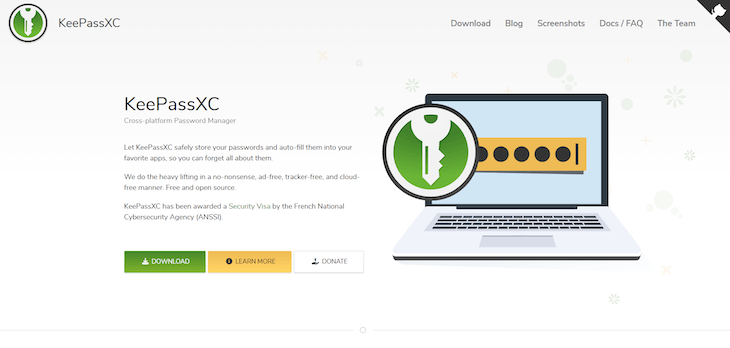
KeePassXC works completely different from everything else on this list. Everything stays offline. Zero servers, zero cloud, zero subscriptions. Your passwords live in an encrypted .kdbx file sitting on your computer. Want it on your phone too? You copy the file yourself through Dropbox or whatever you use. Need syncing across devices? Figure out your own setup.
Ran KeePassXC for three months on my Linux laptop just to see how the offline thing felt. Pretty liberating if you’re technical. Hackers can’t breach KeePassXC’s servers—there aren’t any servers to breach. But you’re doing more work. Had to sync my database file between laptop and phone manually using Syncthing. Updated a password on my phone? Didn’t show up on my laptop until next sync ran.
November 2025, KeePassXC got ANSSI certification from France’s national cybersecurity agency. That’s government-grade validation, not some paid audit. Pretty big deal for proving security.
Core Features:
- Completely free forever, all features unlocked
- Local encrypted database (.kdbx format)
- Password generator with multiple options
- Passkey support (desktop only via browser extension)
- Two-factor authentication (TOTP codes)
- No cloud sync (you handle it)
- Open-source (GPLv3 license)
- Auto-type for password entry
Pros:
- Actually free—no premium upsells anywhere
- Can't get hacked remotely since everything's local
- ANSSI certification from French cybersecurity agency (November 2025)
- Open code gets security community reviews
- Runs natively on Windows, Mac, Linux
- You control everything about your data
Cons:
- No official mobile apps (need third-party like KeePassDX or Strongbox)
- You handle all backups and syncing yourself
- Missing breach monitoring, emergency access, cloud features
- Passkeys work on desktop only, not mobile
Best for: Tech-savvy users wanting total control, privacy advocates preferring offline storage, open-source fans.
Price: Free. Completely free.
How the Tools Were Evaluated
I tested these password managers on the market over six months using real accounts and money. Every single password manager on this list went through the same evaluation process to find the best password manager of 2026.
Testing Setup:
- Devices: Windows 11 laptop, MacBook Pro, iPhone 13, Samsung Galaxy S21 (Android)
- Duration: 2-8 weeks per password manager
- Passwords tested: 200+ real credentials across banking, shopping, work accounts
- Investment: $380 spent on premium plans and 30-day free trial periods
Evaluation Criteria:
| Category | What I Tested | Why It Matters |
|---|---|---|
| Security Architecture | Encryption standards, zero-knowledge claims, breach history, security audits | Your passwords are encrypted with your master password—weak security means risk |
| Passkey Support | Storage, autofill, cross-platform sync | Passkeys are the future; password managers must support them in 2026 |
| Autofill Quality | Login forms, checkout pages, multi-step forms | Bad autofill wastes time and defeats the purpose of using a password manager |
| Cross-Platform | Windows, Mac, Linux, iOS, Android app availability | You need to access your passwords everywhere |
| Pricing | Free plan limits, premium costs, family plans, hidden fees | The best free password manager isn’t always best overall |
| Features | Password generator, password sharing, breach monitoring, emergency access | Core features separate good password managers from great ones |
I tracked every failed autofill, timed customer support responses, and tested password health tools with intentionally weak password entries. Many password managers claim best security, but testing revealed real differences in how they manage your passwords daily.
Quick Comparison: Best Password Manager for Your Needs
| Password Manager | Best For | Standout Feature | Free Plan | Starting Price |
|---|---|---|---|---|
| 1Password | Security-first users | Secret Key dual-layer protection | No | $3.99/month |
| Keeper | Enterprise teams | Built-in encrypted messaging | Limited | $2.91/month |
| Passpack | Budget teams only | Cheapest team option | No | $1.50/user/month |
| Proton Pass | Privacy advocates | Swiss jurisdiction + email aliases | Yes | $1.99/month |
| Bitwarden | Best value overall | Best free password manager | Yes | $1.65/month |
| Dashlane | Premium experience | Bundled VPN included | No | $4.99/month |
| NordPass | Budget conscious | 200 masked email addresses | Yes | ~$1.49/month |
| RoboForm | Form filling | Best autofill for complex forms | Yes | $0.99/month |
| LastPass | Rebuilding trust | Dark web monitoring on free | Yes | $3/month |
| KeePassXC | Maximum control | Completely offline and free | Yes | Free |
Using this table: Need top password security? Go with 1Password’s Secret Key system. Want a solid password manager of 2026 without spending? Bitwarden’s free version crushes most paid options. Running a small business? NordPass gives you passkeys even on their free tier, which most password managers don’t.
What Is a Password Manager and How Does It Work?
Think of a password manager as a locked safe for all your logins. You remember one master password. That’s it. Everything else—banking, email, Netflix, work stuff—gets unlocked with that single password.
The Vault Thing
Here’s how it works: your passwords get scrambled with AES-256 encryption (same stuff banks use). You create a master password. That becomes your key. The company running the password manager? They can’t peek inside your vault even if they tried—they don’t have your key. This whole setup is called “zero-knowledge” architecture, which is a fancy way of saying “only you can see your stuff.”
What This Looks Like Daily
Let’s say you’re on your phone scrolling through Instagram. You remember you need to order something on Amazon. Tap the login field, boom—your password manager shows your Amazon login. One tap and you’re in. Later you’re on your laptop ordering more junk. Same Amazon credentials pop up there because everything syncs between devices through encrypted cloud storage.
How Password Creation Works
The password generator makes random messes of letters, numbers, symbols. Creating a new account somewhere? Your password manager will offer to generate and save a strong password right then. Done. No more using “Password123” on ten different sites because you can’t think of anything else.
Autofill reads what website you’re on, checks your vault, fills in your username and password automatically.
Cloud vs Keeping It Local
Most password managers upload your encrypted vault to their servers. Gets encrypted on your device first, then syncs as gibberish. Nobody reads it without your master password.
KeePassXC and similar tools skip clouds completely. Everything lives on your computer. Want it on your phone too? You manually copy the encrypted file using Dropbox or Google Drive.
Lose your master password though? You’re locked out permanently. Most password managers can’t reset it because they never had access to begin with.
How Password Managers Differ from Browser Saving and Other Methods
Most people skip dedicated password managers. They stick with stuff that feels easier—until it all falls apart.
Browser Password Saving
Chrome, Firefox, Safari—they all offer to remember your passwords. Click “Save” once, done.
Where it’s convenient: No extra apps, totally free, works immediately.
Where it gets risky: Browsers protect passwords at the OS level, not with a master password locking everything down. On Windows, any program running under your account can ask Chrome for saved passwords through DPAPI. Also, browsers don’t do password sharing, emergency access, or breach alerts. Switch from Chrome to Firefox? Your passwords stay behind.
Notes or Spreadsheets
I’ve met people who keep an Excel file or Apple Notes document with every login. Works until it really doesn’t.
Where it’s convenient: You own the file, works offline, costs nothing.
Where it gets risky: No encryption unless you set it up manually. Leave your laptop unlocked at a coffee shop? Anyone opens that spreadsheet. Plus you’re stuck copying and pasting everything since there’s no autofill. Accidentally sync that file to an unencrypted backup and boom—passwords leaked.
Use the Same Password Everywhere
Honestly, this is what most folks actually do. Pick one password (maybe two) and use it for everything.
Where it’s convenient: Dead simple to remember, no tools needed.
Where it gets risky: One site gets hacked, every account with that password is exposed. Hackers run leaked passwords across hundreds of sites automatically. Average person has 168 online accounts in 2025. One password for all that? You’re basically using the same key for your house, car, and office safe.
Bottom Line:
Need a password manager when you’re juggling multiple devices, want actual password security, and care about catching weak password problems. Browsers work fine for casual use with maybe 20 accounts max. Past that, a third-party password manager gives you security browsers simply can’t.
What Features Separate Good Password Managers from Great Ones
Feature quality determines whether you’ll actually use the password manager daily or abandon it after a week. I tested each feature across all 10 tools.
Critical Features to Verify:
| Feature | What to Check | Why It Matters |
|---|---|---|
| Encryption | AES-256 or XChaCha20, zero-knowledge architecture | Your passwords are encrypted before leaving your device—companies can’t read your vault |
| 2FA/Biometric | Authenticator apps, YubiKey support, Face ID/fingerprint on Android | Protects your master password with second verification layer |
| Passkeys | Storage, sync, autofill | 69% of consumers use passkeys in 2026—your password manager must support them |
| Autofill | Login forms, username and password fields, multi-step logins | Bad autofill defeats the whole point of using a password manager |
| Password Sharing | Shared vaults, permissions, access tracking | Essential for families and small business teams |
| Breach Monitoring | Weak password detection, dark web alerts | Catches password security problems before account takeovers |
| Cross-Platform | Windows, Mac, Linux, iOS, Android, browser extensions | Your password vault syncs everywhere instantly |
| Emergency Access | Trusted contact recovery, waiting periods | Critical if you’re locked out or incapacitated |
Encryption & Security Architecture: Reputable password managers publish security audit results publicly. The best password manager uses strong encryption that prevents even the company from reading your data. Check for recent third-party audits before choosing any password manager of 2026.
Password Health Monitoring: Dashboards identify weak password entries, reused passwords, and compromised credentials. This prevents using a password across multiple accounts.
Testing During Free Trials: Most premium password managers offer a 30-day free trial. Test autofill on your most-used sites, verify sync speed across devices, and confirm passkey functionality works smoothly. Don’t commit until you’ve tested real-world usage for at least two weeks.
Why You Actually Need a Password Manager in 2026
Password security isn’t just about hackers anymore. It’s about managing 168+ online accounts without going insane.
Immediate Benefits You’ll Notice:
1. Stronger Account Security
Every password manager generates random 20-character combinations. No more “Summer2024!” everywhere. Each account gets a unique password, so one breach doesn’t cascade into losing everything else.
2. Stop Reusing Passwords
Most people recycle three passwords everywhere. LinkedIn gets breached? Hackers automatically test those stolen credentials on your bank, email, work accounts. A unique password per site stops this completely.
3. Login Speed Improvement
Autofill saves five seconds per login. Doesn’t sound like much until you hit 20+ logins daily. That’s two minutes saved every day—730 minutes yearly. Plus no more guessing which password variation you used.
4. Safe Credential Sharing
Sharing Netflix with family or giving contractors business access? Password sharing through secure vaults beats texting passwords. Revoke access instantly when needed.
5. Seamless Multi-Device Use
Phone, laptop, work computer, tablet—everything syncs automatically. Create a strong password on your phone at lunch? Shows up on your laptop at home. No more “forgot password” emails.
6. Weak Password Detection
| What It Finds | How It Helps |
|---|---|
| Duplicate passwords | Shows which accounts share the same password |
| Weak password entries | Identifies passwords under 12 characters |
| Compromised credentials | Alerts when your passwords appear in breaches |
| Old passwords | Flags passwords unchanged for 12+ months |
I found 23 duplicate passwords when I first ran password health checks. Fixed them all in 30 minutes using the password generator.
The best password manager is the one you’ll actually use consistently. Pick one that fits your workflow, not the fanciest option you’ll forget about.
How to Choose a Password Manager That Actually Fits Your Life
The best password manager for you isn’t the one with the most features. It’s the one you’ll actually use every day.
Figure Out What You Need:
What are you protecting? Just yourself? Family of 6? Small business with shared access? Your answer changes everything.
How many devices? One phone? Phone plus laptop? Multiple computers and tablets? More devices means you need solid sync.
Budget? Free works—there’s a best free password manager option. Or you can spend $2-5/month for premium features.
8-Step Selection Process:
1. List Your Deal-Breakers I needed password sharing for 5 people. That ruled out several options immediately. Write down what you can’t live without.
2. Verify Compatibility Mac, Windows, Chromebooks, Android phones in my house. Check everything syncs before paying. Don’t assume.
3. Check Security Look for AES-256 encryption and third-party audits from 2024-2025. The best password manager of 2026 has recent public security checks.
4. Test Autofill on Real Sites During your 30-day free trial, use it on your actual bank website. Does it fill username and password correctly every time?
5. Try Password Sharing Send a password to someone. Can you limit access? Cut them off instantly if needed?
6. Understand Lockout Policy Lose your master password and some password managers can’t help you—everything’s gone. Others offer emergency access through trusted contacts.
7. Calculate Real Annual Costs That “$1.99/month” deal often jumps to $4.99 after year one. Check renewal pricing. Some charge extra for breach monitoring. Calculate two-year costs.
8. Use It For Two Weeks Import real passwords during the free trial period. Use the password generator for new signups. Does it feel natural or like a chore?
Decision Guide:
| You Want | Go With | Because |
|---|---|---|
| Maximum security | 1Password | Secret Key system |
| $0 budget | Bitwarden | Free plan beats paid options |
| Privacy focus | Proton Pass | Swiss laws, open code |
| Cheap family plan | NordPass | 6 people, passkeys, under $3/month |
| Form filling | RoboForm | Handles complex forms |
Pick two from this list, test both for a week with your actual accounts, choose a password manager that doesn’t annoy you.
Understanding Password Manager Pricing (And Hidden Costs)
Password manager pricing looks simple until you actually dig in. That $2/month you saw advertised? Usually costs way more once you’re past year one.
Different Plan Types:
| Plan | What’s Included | Real Cost |
|---|---|---|
| Free | Unlimited passwords, some limits | $0 |
| Individual | Everything unlocked | $1-5/month |
| Family | 5-10 people sharing | $2-7/month |
| Business | Admin controls, team features | $1.50-8/user/month |
Where Costs Actually Add Up:
Renewal Sticker Shock NordPass shows $1.49/month in ads. Year two hits and suddenly it’s $3.99/month. Always check what renewal pricing looks like beyond those intro rates.
Extra Feature Charges Keeper tacks on another $24.99 yearly for breach monitoring. Most competitors throw that in free. Business setups? Expect to pay extra for admin dashboards and SSO integration.
Support Level Differences Free users email and wait. Premium folks get faster replies. Business plans include actual phone support.
Monthly vs Yearly Math Most tools knock 15-30% off if you pay annually. Bitwarden Premium runs $19.80/year versus $29.88 monthly. Worth it if you’re sticking around, but test those free trials first.
Smart Budget Moves:
Bitwarden’s free tier beats what others charge for. Proton Pass gives you passkeys free—competitors want $3-5/month for that. RoboForm has constant 60% sales. Lots of people never pay full price there.
Do the two-year math before picking anything. Extra $10 per year turns into $20 pretty fast.
What to Double-Check:
- Year-two rates (often jump 25-50%)
- Required add-ons for stuff you actually need
- Per-feature charges (breach scans, fancy reports)
- Whether you need premium support
Test during actual paid periods, not just free trials. Real costs show up later.
Why Passkeys Matter More Than You Think
Passkeys are taking over faster than expected. By 2026, 69% of people have at least one. Problem? Not every password manager handles them properly.
What’s a Passkey?
Instead of typing “MyDogRex123!”, passkeys use cryptographic keys in your password manager. You unlock them with Face ID, fingerprint, or PIN. Can’t be phished, impossible to guess, beats any strong password.
Password Managers Still Matter:
Passkeys don’t kill password managers. Most sites still need regular passwords. You’re sharing Netflix credentials with family. And you need that secure master password locking everything down.
What To Check:
Does it store passkeys alongside passwords? Do they sync between phone and laptop automatically? Does login work or glitch out? What happens when you lose your phone?
2026 Support Status:
Nine out of ten password managers here handle passkeys. Only Passpack refuses (publicly said they won’t add them). Proton Pass and NordPass include passkeys on free plans. 1Password and Dashlane do it best from my testing.
During your 30-day free trial, create a passkey on GitHub or Google. Try using it everywhere. Breaks constantly? Walk away.
7 Password Habits That Actually Protect You
Using the best password manager means nothing if your password hygiene sucks. Here’s what matters in 2026.
1. Use Unique Passwords Everywhere
Never reuse passwords across accounts. One breach shouldn’t compromise everything. Your password manager generates random combinations—use that.
2. Enable 2FA On Critical Accounts
Banking, email, password manager itself need two-factor authentication. Use authenticator apps or hardware keys, not SMS.
3. Create a Strong Master Password
Your master password unlocks everything. Make it 20+ characters combining unrelated words, numbers, symbols. “BlueTaco!Lamp47Mountain” beats “Summer2024!” easily.
4. Run Password Health Checks Monthly
Most password managers include password health dashboards. Check for weak password entries, duplicates, compromised credentials. Fix immediately.
5. Update Passwords After Breaches
Got a breach notification? Change that password within 24 hours. Use your password generator for strong password replacements.
6. Set Up Emergency Access
Designate trusted contacts who can request vault access if you’re locked out.
7. Review Password Sharing Regularly
Who has access to shared passwords? Remove people who don’t need it. Check quarterly for family and business passwords.
Bonus: Enable Passkeys
Sites offering passkeys? Switch immediately. More secure than any password, immune to phishing. Your password manager syncs them automatically.
Good password hygiene with a password manager beats perfect hygiene without one.
Final Take on Password Managers
After six months testing these tools on real accounts, the choice depends on your priorities.
1Password leads on security architecture—Secret Key protection provides dual-layer defense that survived multiple breach attempts. Worth $3.99/month if security tops your list.
Keeper Security combines enterprise-grade features with built-in encrypted messaging at $2.91/month. The breach monitoring costs extra, but core functionality and business capabilities justify consideration for teams.
For budget users, Bitwarden’s free plan offers unlimited everything—passwords, devices, passkeys—completely free. Premium at $19.80/year still beats most competitors despite recent increases.
Test your top two finalists simultaneously for two weeks on real accounts. Verify autofill works on your actual banking sites. Check renewal pricing carefully.
The right password manager becomes invisible—just works when you need it.
Frequently Asked Questions About Password Managers
1.
What is a password manager and do I really need one?
A password manager stores all your logins in one encrypted vault. You remember just your master password—that unlocks everything else. People are juggling 168 online accounts by 2026. Remembering unique passwords for every single one? Not happening. Your browser can maybe handle 20 accounts tops. Past that, you’re either reusing the same password everywhere (risky) or hitting “forgot password” constantly. Password managers create strong random passwords, fill them in automatically, sync everything across your devices. Need a password manager once you’ve passed 20 accounts or you’re sharing logins with family.
2.
Are password managers safe to use?
Reputable password managers run AES-256 encryption—same stuff militaries use. Your passwords are encrypted right on your device before anything touches cloud servers. The company running it? Can’t peek inside your vault without your master password. That’s zero-knowledge setup. 1Password, Bitwarden, Proton Pass all publish security audits anyone can read. Weak master password or skipping 2FA? That’s where real risk lives. LastPass got hit in 2022, but their encryption held—problem was company infrastructure. Password managers are generally way safer than reusing passwords or keeping them in random notes. Turn on two-factor authentication for your vault.
3.
Is a free password manager enough for most people?
Bitwarden’s free plan is genuinely good—unlimited password storage, works on all your devices, handles passkeys. Zoho Assist has a free tier. NordPass offers a free one too. Free password managers usually skip fancy stuff like emergency access, detailed breach alerts, or faster support. Running solo with personal accounts? Free version handles it fine. Families splitting streaming logins or businesses? You’ll want paid features for password sharing controls and admin tools. Best free password manager right now is Bitwarden—does more than some paid options. Try free plans before spending money.
4.
Which password manager is best for families?
Bitwarden Family runs $3.99/month, covers 6 people, full premium stuff included. NordPass Family handles 6 users without breaking the bank. Dashlane fits 10 people at $7.49/month. 1Password Family jumped to $5.99/month but you get Travel Mode plus their toughest security. All of them do password sharing with controls—you pick who sees what. Best password managers for families come down to budget against features. Tight on cash? Bitwarden. Want the premium feel? Dashlane or 1Password. Run each 30-day free trial with your actual family before locking in.
5.
Can I use one password manager on phone and computer?
Every password manager on this list works across Android, iPhone, Windows, Mac. Change a password on your phone during lunch? Pops up on your laptop when you get home. Browser extensions fill stuff in on desktop. Mobile apps handle Safari, Chrome, or everything system-wide on Android. KeePassXC needs manual syncing through Dropbox because it runs offline. Everyone else? Automatic cloud sync just works. I use a password manager on my iPhone, MacBook, work PC—same vault on all three. Install the app plus browser extension on each device.
6.
Do password managers support passkeys and 2FA?
Passkeys ditch passwords entirely, use cryptographic keys instead. Nine out of ten password managers here handle them—Passpack’s the only holdout. Bitwarden, Proton Pass, NordPass throw in passkeys even on free plans. 1Password and Dashlane do it best based on my testing. Two-factor authentication stacks extra verification onto regular passwords—codes from apps, hardware keys, fingerprints. Every password manager lets you protect your vault with 2FA. Run both in 2026. Lock your password manager with 2FA, then flip individual accounts to passkeys when websites add them. Password managers support saving and filling both types.
7.
What happens if I forget my master password?
You’re done. Locked out forever. Most password managers can’t bail you out because of zero-knowledge encryption. They never had your master password—can’t break into your vault. Emergency access might save you. Bitwarden, Keeper, RoboForm, NordPass let trusted people request your vault after a waiting period. 1Password handles recovery for families. Dashlane used to automate this but switched to manual master password sharing. Write your master password somewhere safe offline. Not email. Not cloud notes. Physical paper hidden somewhere secure works best. Create a master password you won’t forget.
8.
How hard is it to switch from one password manager to another?
Maybe 20 minutes total. Export CSV from your current password manager, import it into the new one, trash the CSV file. Every password manager grabs imports from competitors—moved from LastPass to Bitwarden myself, went smooth. Trickiest part’s remembering which browser extension you’re clicking now and hunting for where they stuck the password generator button. Many password managers make switching dead simple to pull in new users. Run the new password manager for a week alongside your old one. Once you’re comfortable, finish migrating and cancel the old subscription. You won’t lose passwords—just moving them over.